This article is for general information only. It has been checked against the sources listed below but has not been reviewed by a medical professional.
A baby tracker does not have one universal list of permissions that it “really needs.” The right question is simpler: which feature are you choosing to use, and what is the smallest access that lets that feature work?
Typing a feed, sleep or nappy note is different from attaching a photo, finding a nearby service or connecting an accessory. A permission can be reasonable for one of those purposes and unnecessary for another. This checklist helps parents assess the prompt in front of them without ranking individual apps or assuming that every permission is good or bad.
The Office of the Australian Information Commissioner (OAIC) guidance on data minimisation says organisations should limit collection of personal information to the minimum amount necessary in the circumstances. That is a useful evaluation principle, but this article is general information, not legal advice or a conclusion about whether any app meets Australian privacy law.
Start with purpose, not the permission name
Before tapping Allow, ask what you were doing immediately before the prompt appeared. A clear request usually connects the permission to a feature you deliberately opened. If the connection is not obvious, pause and look for the developer’s explanation, privacy policy or support information.
- Feature: What am I trying to do?
- Access: What information or device function would the app receive?
- Scope: Can I choose a smaller level of access?
- Timing: Is the app asking when I use the feature, or before I have chosen it?
- Choice: What works if I tap Don’t Allow, and can I change the decision later?
Apple explains that iPhone users can control access to data, location, camera and microphone, then change those choices later. The practical effect of denying access depends on the app and feature.
A purpose-based baby tracker permissions checklist
Photos
A possible purpose: choosing an existing photo, document image or other attachment for a child’s record.
What to check: Are you adding a specific attachment, or is the app asking for broader photo-library access before you use that feature? Read the wording on the Apple prompt and use the smallest option that supports what you intend to add. If you will not attach existing photos, ask why photo access is being requested.
Camera
A possible purpose: taking a new photo or capturing a document image from inside the app.
What to check: Did the request appear when you chose a camera or scan action? Camera access does not explain a request for the microphone, contacts or location. Apple requires apps to request permission and explain why before using the camera or microphone, and lets you review camera, microphone and other hardware access in Privacy & Security settings.
Notifications
A possible purpose: reminders for a parent-created task, appointment or routine, or an alert that the app says it can provide.
What to check: Which notifications will be sent, whether previews may reveal private details on the Lock Screen, and whether reminders can still be viewed inside the app. Apple lets you turn notifications on or off for a specific app and customise how they appear. Notification access is separate from permission to read Contacts, Calendars or Reminders.
Contacts, Calendars and Reminders
Possible purposes: selecting a contact for a sharing feature, adding an appointment to the system Calendar, or creating an item in Apple Reminders.
What to check: Does the app need to read existing information, add a new item, or both? A baby tracker does not automatically need your address book or calendar merely because it stores a caregiver name or appointment inside the app. Apple says you can review or change access to information such as Contacts, Photos, Calendars and Reminders.
Location
Possible purposes: a feature that searches for nearby services, tags a place you choose, or delivers a location-based alert.
What to check: Whether the feature needs an approximate or precise location, whether access is needed only while you use the feature, and why background access is requested if it appears. A routine log does not by itself explain location access. Apple documents the available Location Services controls for individual apps; the options you see depend on the app’s request and the platform version.
Microphone and Speech Recognition
Possible purposes: recording an audio note or using a voice-input feature.
What to check: Did you deliberately start recording or dictation? Ask whether audio is stored only as a recording, converted to text, sent to a service provider or handled in another way described by the app. If you only type notes, the developer should be able to explain why microphone or speech access is relevant.
Bluetooth, Local Network, Motion & Fitness or Health
Possible purposes: connecting a supported accessory, finding a device on the same network, using motion-related data, or working with a health-data integration.
What to check: Which named feature or device uses the permission, what information moves between them, and whether the permission is optional when you do not use that integration. These permissions are not a universal requirement for keeping manually entered baby-care notes. Do not assume that an app supports an integration merely because the permission category exists on the device.
Tracking across other companies’ apps and websites
A possible purpose: advertising, advertising measurement or sharing information with data brokers as described by Apple’s tracking framework.
What to check: Read the app’s explanation and its App Store privacy information. Apple says App Tracking Transparency lets you choose whether an app can track activity across other companies’ apps and websites, and that you can change the choice later. This is different from permission to use the camera, photos or location for a feature you selected.
What may not need a sensitive permission?
Many basic record-keeping actions can happen inside an app without access to unrelated device data or hardware. Examples include typing a feeding note, starting and stopping a sleep timer, entering a nappy record, or adding text to an appointment note. The design of each app differs, so treat these as prompts for questions rather than universal technical rules.
- If a permission is tied to an optional feature you do not use, try continuing without it.
- If the feature stops working, decide whether that feature is worth the requested access.
- If a permission seems unrelated to the feature, look for a specific explanation before enabling it.
- Revisit permissions after an update or when your use of the app changes.
A 60-second check when a prompt appears
- Stop and name the feature you just chose.
- Read the full permission explanation, not only the Allow button.
- Choose the narrowest access option that supports your purpose.
- If you are unsure, decline for now and see what remains usable.
- Review the app’s current privacy information before entering sensitive records.
- Later, check the app under Settings > Privacy & Security and remove access you no longer use.
A permission decision is not a one-time verdict on the whole app. It is a feature-by-feature choice that you can revisit as your needs change.
How Nucentra fits this checklist today
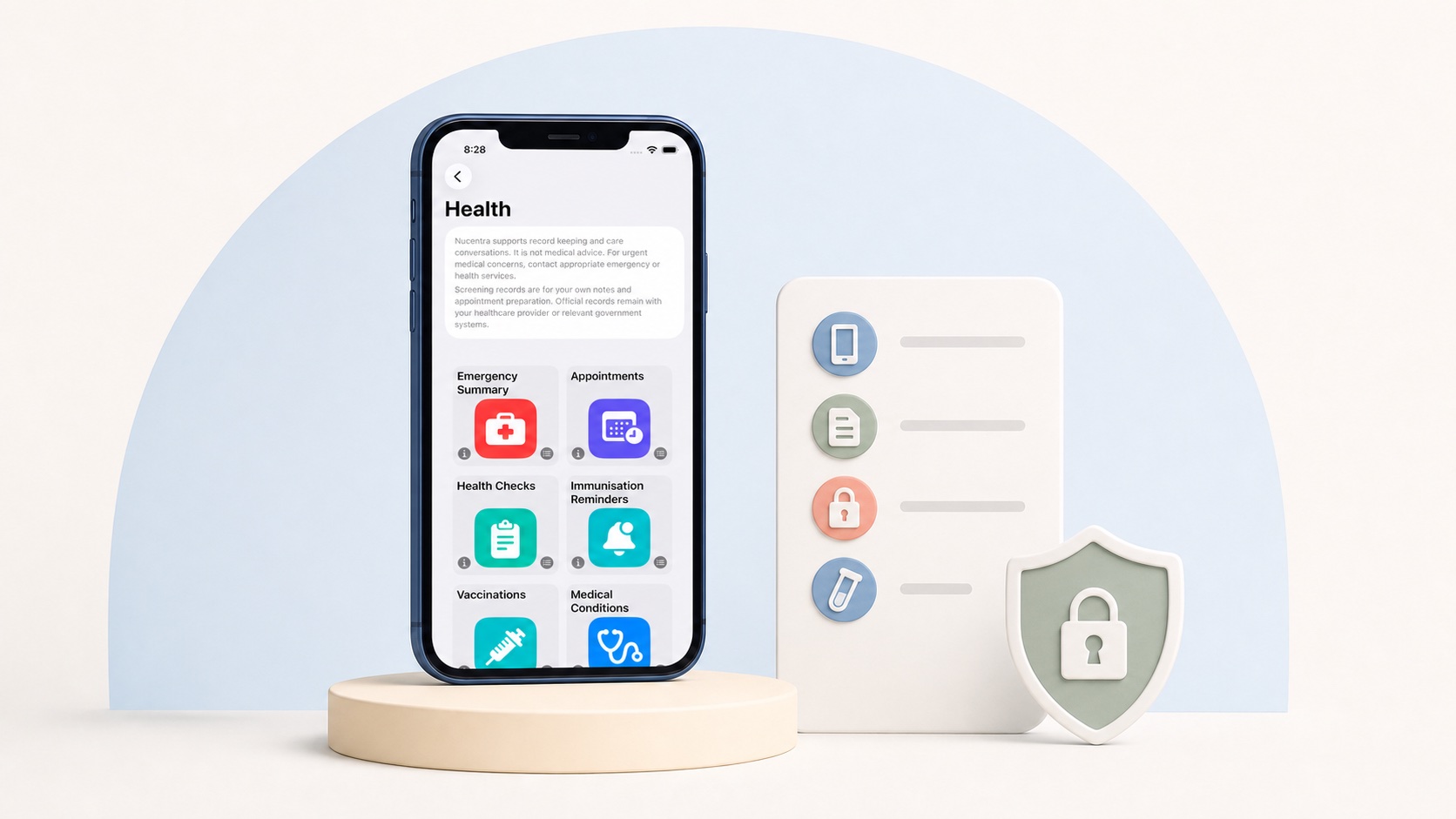
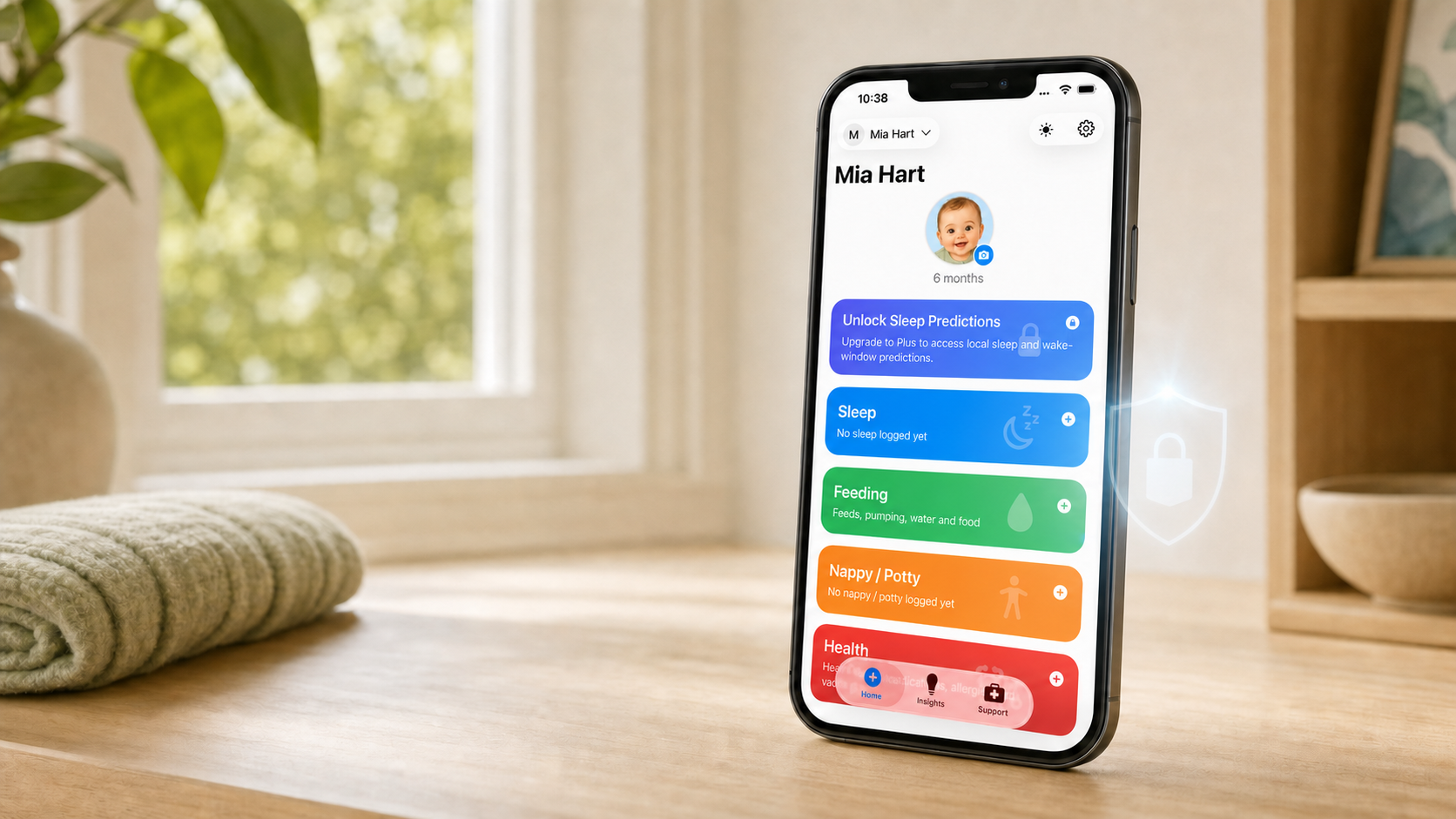
Nucentra is a privacy-first child health record companion and baby care tracker for iPhone and iPad. Its current public product page describes local parent-entered records for sleep, feeding, growth, medications, symptoms, appointments, vaccinations, attachments and everyday notes.
In the current version, user-entered Nucentra records are stored locally on the iPhone or iPad where the app is used. Nucentra does not currently provide active cloud record sync, family sharing, clinician access or a Nuco Tech backend account for app records. Depending on Apple device and iCloud Backup settings, normal device backups may include app data. The privacy policy separately explains support, purchase, analytics and crash information.
This article does not infer which permission prompts a particular installed build will show. Review the prompt on your device in the context of the feature you choose. For current product boundaries, learn how Nucentra works today and read the current Nucentra Privacy Policy. For downloads, visit Nucentra on the App Store.
Related reading
For more context on careful family record keeping, read Why Privacy Matters in Family Care Tracking.
Sources
- Office of the Australian Information Commissioner — APP 3: Collection of solicited personal information (updated 13 May 2026; accessed 2 August 2026).
- Apple Support — Control what you share on iPhone (date not stated; accessed 2 August 2026).
- Apple Support — Control access to hardware features on iPhone (date not stated; accessed 2 August 2026).
- Apple Support — Control access to information in apps on iPhone (date not stated; accessed 2 August 2026).
- Apple Support — About privacy and Location Services in iOS and iPadOS (published 25 May 2026; accessed 2 August 2026).
- Apple Support — Turn notifications on or off for a specific app on iPhone (published 7 April 2026; accessed 2 August 2026).
- Apple Support — If an app asks to track your activity (published 26 December 2025; accessed 2 August 2026).
- Nuco Tech — Nucentra (date not stated; accessed 2 August 2026).
- Nuco Tech — Nucentra Privacy Policy (last updated 16 July 2026; accessed 2 August 2026).
This article uses Australian health sources. If you live outside Australia, check advice from your local health authority or healthcare professional.