This article is for general information only. It has been checked against the sources listed below but has not been reviewed by a medical professional.
When you have a baby, useful information can quickly end up in several places: a paper child health book, an immunisation statement, appointment letters, photos of documents, emails and notes made during a tired week. The goal is not to replace those records or track every detail. It is to give yourself one calm starting point for finding what you already have.
Start with the records your baby already has
Before choosing an app or folder system, gather the places where your child’s information already lives. For a Queensland baby, this may include the Personal Health Record, often called the red book. Children’s Health Queensland says the red book records health, growth, development and vaccination history, and advises families to take it when their child sees a health professional.
Other official records have their own purpose. An Australian Immunisation Register (AIR) history statement shows immunisations reported to the AIR and can be used as evidence for school, child care, employment or travel. Services Australia explains how parents can access a statement for a child under 14. A child’s Australian Government My Health Record can also contain information such as vaccination records, allergy information and medicines.
A parent-held folder or Nucentra record can help you organise copies and notes, but it is not an official health record and should not replace the red book, AIR statement, My Health Record or records held by healthcare providers.
Create one simple index
You do not need to move every original document into one place. A simple index can tell you what exists and where the official or original version is kept.
Your index might include:
- the child’s paper health book and where it is stored
- the latest AIR immunisation history statement and the date you downloaded it
- appointment dates, locations and contact details
- questions you want to ask at the next appointment
- letters, referrals, reports or test-result copies you have been given
- medication, allergy or care information you have chosen to record
- photos, PDFs or attachments and where the original came from
- a short note showing which items need a newer copy.
This is an organisation list, not a checklist of medical information every family must collect. Keep only what is useful for your circumstances, and ask the relevant healthcare provider if you are unsure which official record matters for a particular purpose.
Keep originals and copies clearly labelled
A clear name is usually more helpful than a complicated folder structure. Use a consistent pattern that makes sense to you, for example:
- Date — document type — provider
- 2026-07-10 — appointment letter — clinic name
- 2026-07-12 — AIR statement — downloaded copy
If a file is only a copy, say so in the name or note. Keep the paper original where it is safe and easy to find. Avoid changing a healthcare provider’s wording when you write your own summary; your note can point back to the original document instead.
Use a small maintenance routine
A short routine is easier to keep than a perfect system. After an appointment, take a few minutes to add the date, save any document you were given, record questions for later and note where the official copy lives. Once a month, check whether anything is still sitting in an email or camera roll waiting to be filed. Before removing a duplicate, confirm that the retained copy is complete and that you have a current backup you can restore.
If two caregivers use the same device-based record, agree on simple naming and what should be recorded. Do not assume the information is being synchronised elsewhere.
Protect digital copies
Child health documents can contain personal or sensitive information. The Australian Cyber Security Centre advises people to back up important files regularly, protect accounts and backups, and test that backups can be restored. The Office of the Australian Information Commissioner recommends deleting old emails you no longer need, especially when they contain private information, or storing them somewhere secure.
- Use the security controls available on your phone, tablet and accounts.
- Keep paper records and backup devices somewhere secure.
- Check who can access a shared folder or account before storing child information there.
- Avoid leaving unnecessary child-health documents in shared email, downloads or camera rolls. If you no longer need a copy, first confirm the retained file and working backup, then remove the unnecessary copy using the device or account’s normal controls.
- Remember that a backup is another copy of the information, not the same thing as live app sync.
How Nucentra fits today
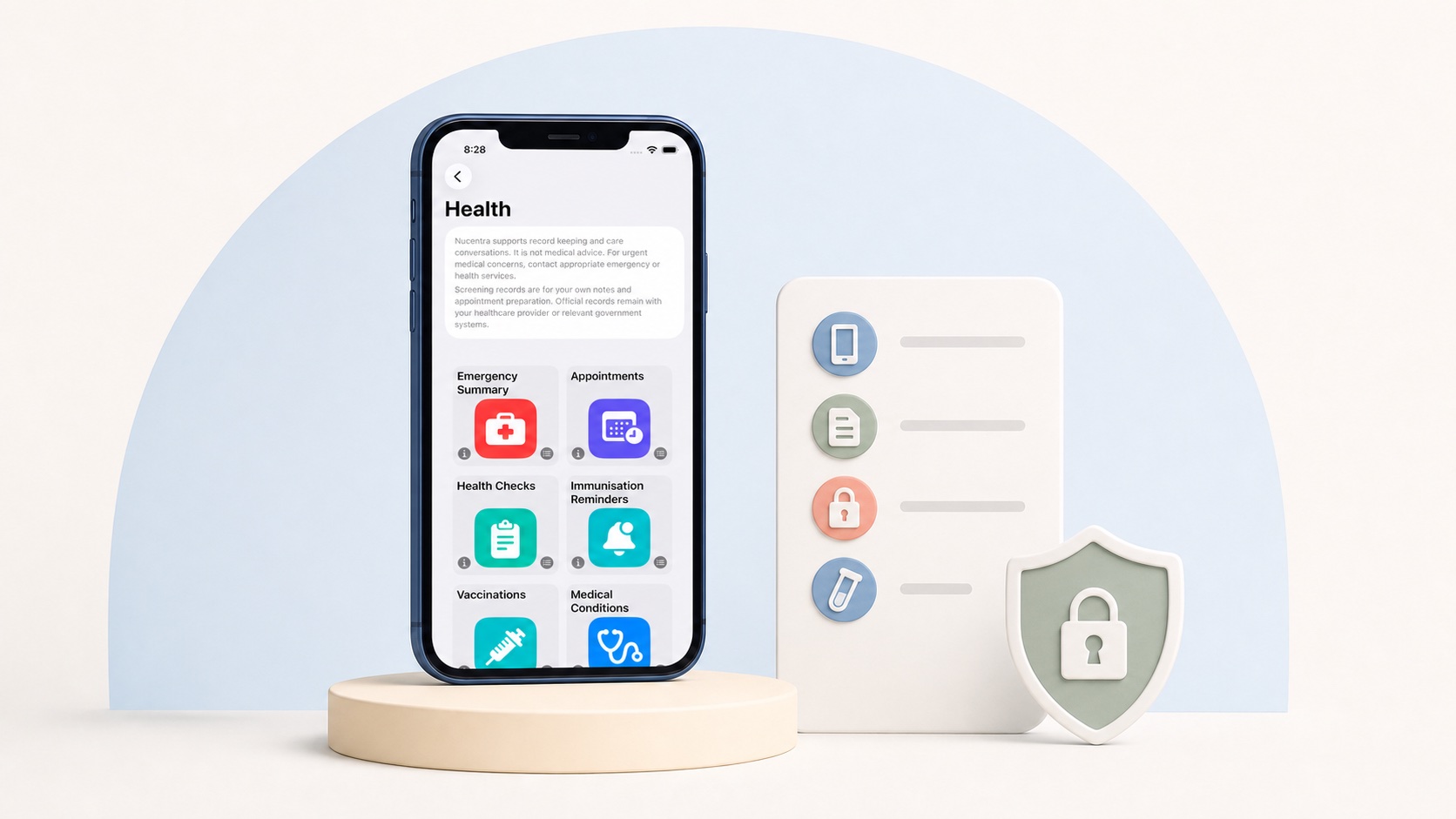
Nucentra is a privacy-first child health and care record companion for iPhone and iPad. In the current version, user-entered records are stored locally on the device where the app is used. You can use current features to keep parent-entered notes, appointments, documents and attachments together, alongside everyday care records that are useful to your family.
Nucentra does not currently provide active cloud record sync, family sharing, invited-user access, clinician access or a Nuco Tech cloud account for app records. Depending on your Apple device and iCloud Backup settings, normal device backups may include app data. That is different from Nucentra offering live sync or family sharing.
Think of Nucentra as a parent-controlled organising companion: a place to record and find information you may want during care conversations. It does not assess a child’s information or replace official records or professional care.
A calm 10-minute starting checklist
- Choose one starting point for your index.
- Write down where the paper child health book is kept.
- Add the most recent appointment and any questions you want to remember.
- Save one important document with a clear date and name.
- Note where your child’s AIR statement and My Health Record can be accessed.
- Check the privacy and backup settings for the device or account you are using.
- Stop there. Add the rest gradually when you next use it.
Learn more about Nucentra
See what Nucentra can help you organise today, then read the current Nucentra Privacy Policy for details about local storage, Apple device backups, analytics and support information. If you have a product or privacy question, contact Nuco Tech Support. For downloads, visit Nucentra on the App Store.
Sources
- Children’s Health Queensland — Red book (personal health record) (last updated September 2023; accessed 2 August 2026).
- Services Australia — What an immunisation history statement is (last updated 1 July 2026; accessed 2 August 2026).
- Australian Digital Health Agency — Access or create a child’s record (last updated 14 August 2025; accessed 2 August 2026).
- Australian Cyber Security Centre — How to back up your files and devices (last updated 12 November 2024; accessed 2 August 2026).
- Office of the Australian Information Commissioner — Privacy Awareness Week: For individuals (date not stated; accessed 2 August 2026).
- Nuco Tech — Nucentra Privacy Policy (last updated 16 July 2026; accessed 2 August 2026).
- Nuco Tech — Nucentra (date not stated; accessed 2 August 2026).
This article uses Australian health sources. If you live outside Australia, check advice from your local health authority or healthcare professional.