
Nucentra data export and deletion help
Use this page to understand the export and deletion controls in the current Nucentra app. Nucentra is local-first: records are stored on the iPhone or iPad where you use the app. Nuco Tech Support generally cannot view, export, recover or delete those local records for you.
Before you export or delete
Plus currently includes formatted PDF and CSV reports for the selected profile. These reports are separate from a complete portability archive. A complete portability archive is a Free data-control feature, but it is not available in this current version.
If you need a complete copy of all records and attachment files, do not delete your Nucentra data or the app. Current Plus reports are not a complete backup, all-data export or recovery file.
Export a formatted report with Plus
- Choose the profile you want to report on.
- Open Insights.
- In Reports, choose Export Spreadsheet (CSV) or Export Formatted Report (PDF).
- Read the sensitive-report warning, then choose Create and Share if you want to continue.
- Use the Apple share sheet to save or send the report to a destination you trust. Confirm that the destination received the file before relying on it.
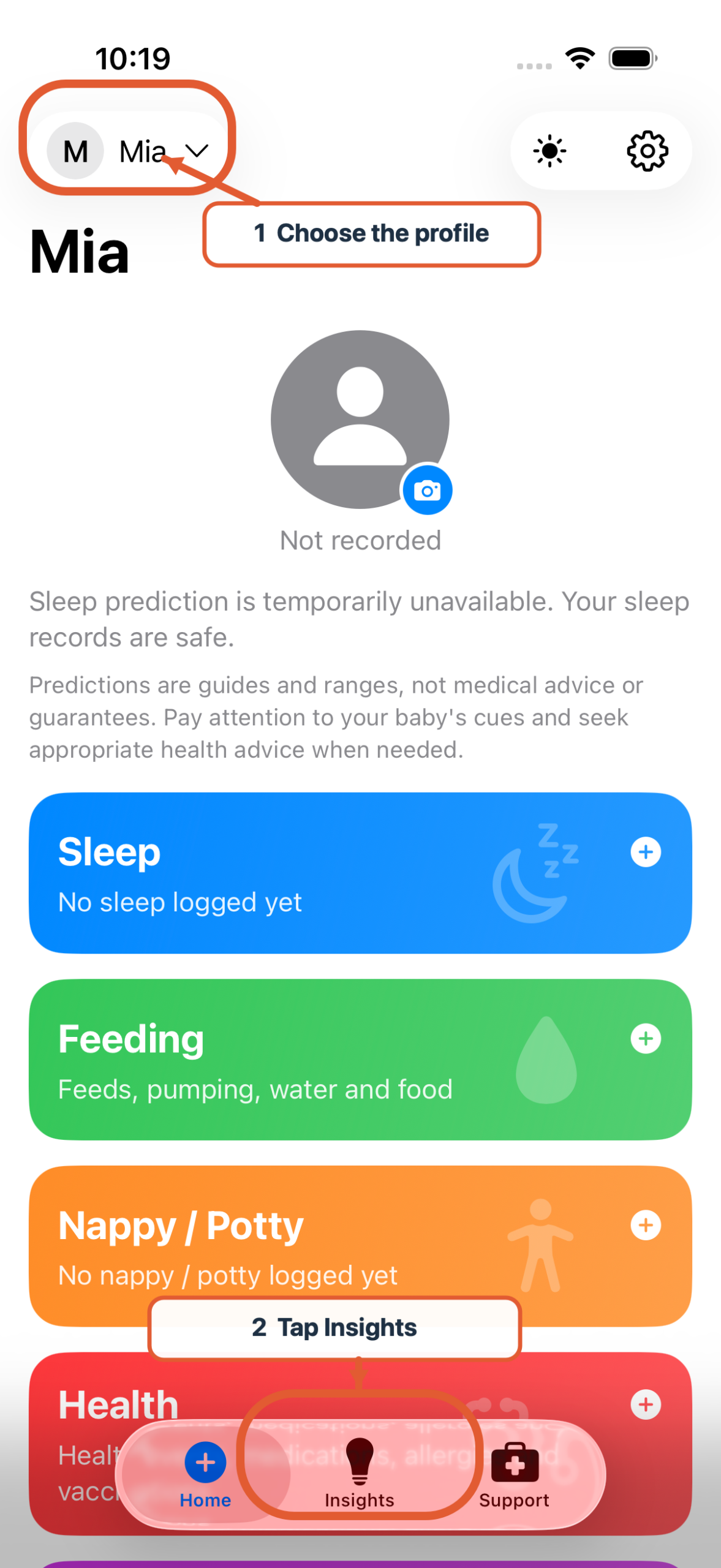
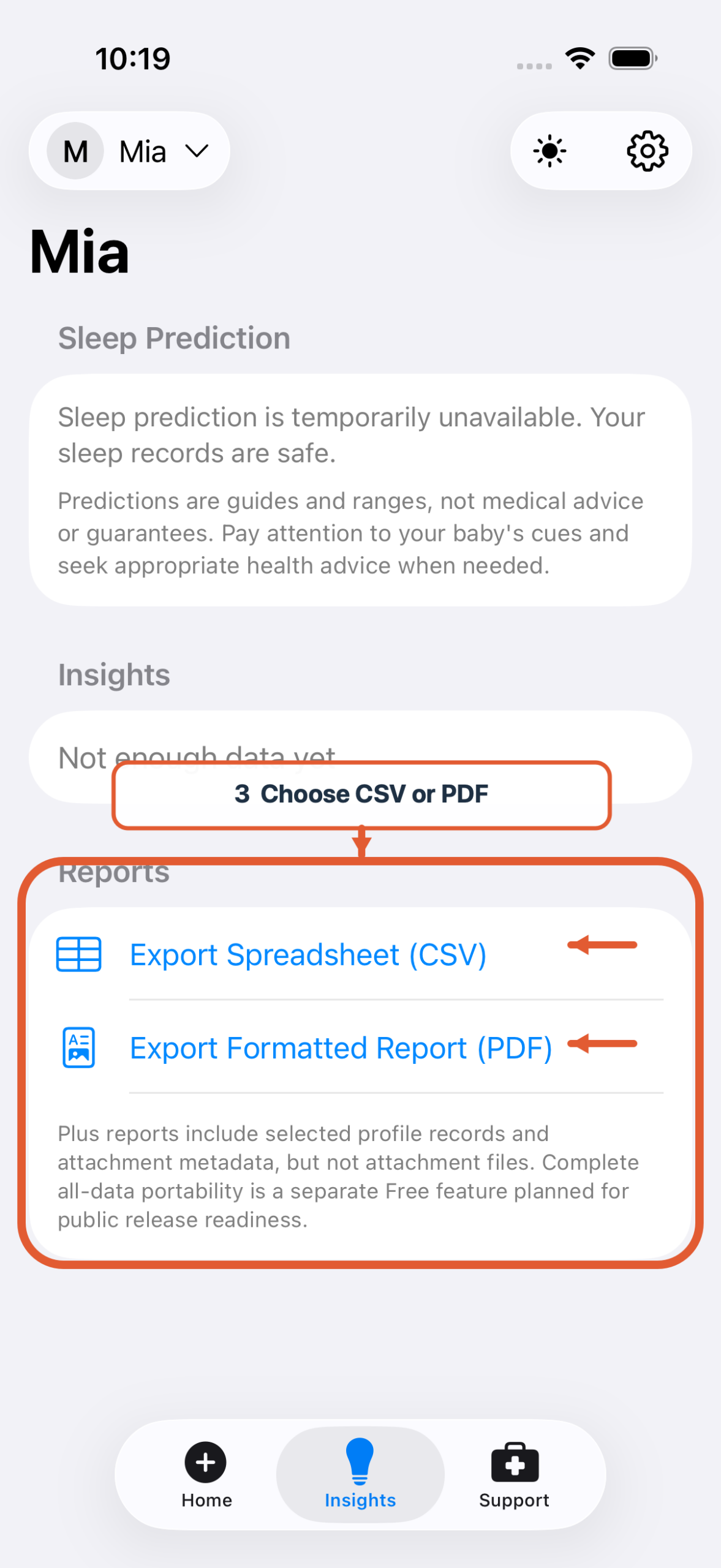
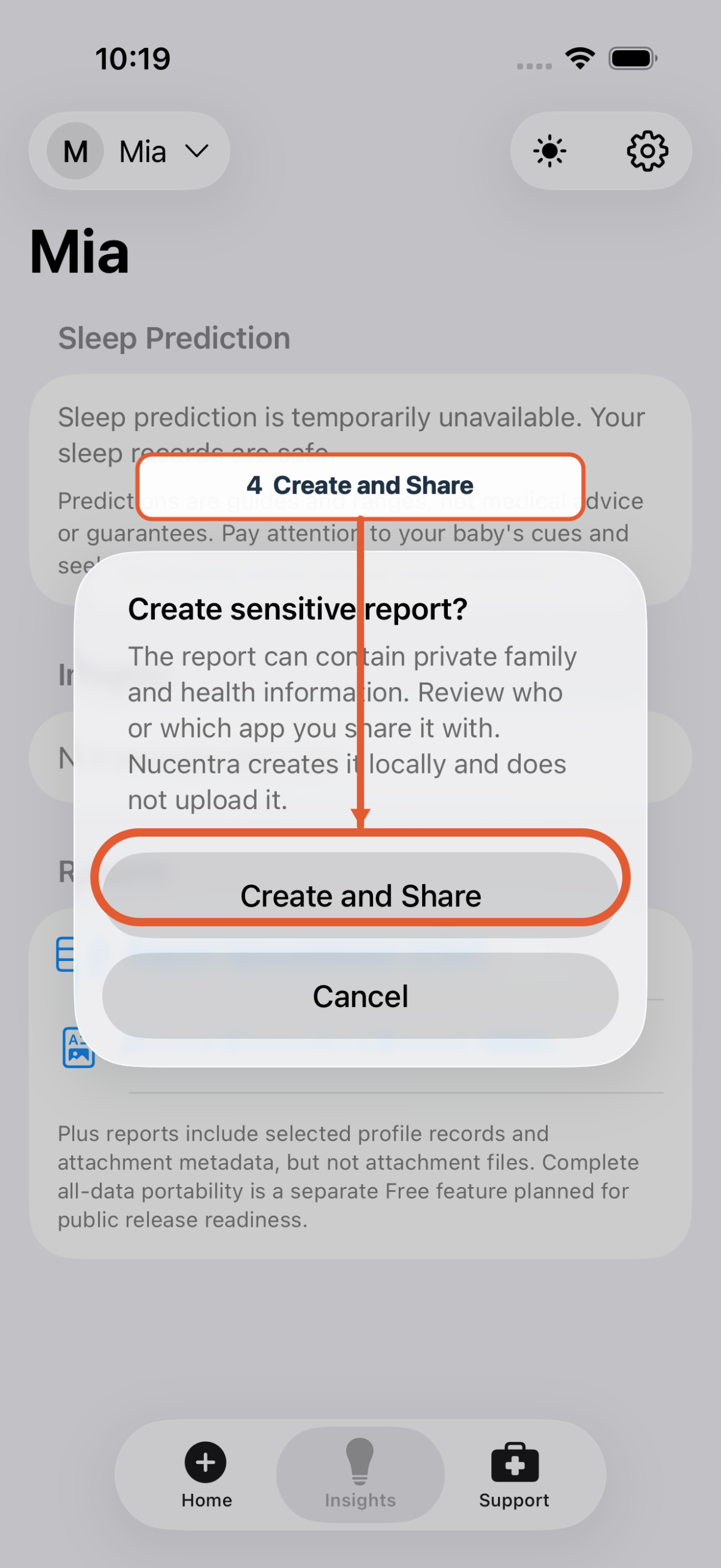
Each report covers the currently selected profile. It includes available profile records and attachment details, but not the attachment files themselves. Export each profile separately if you want a formatted report for more than one profile.
Nucentra creates the report locally and does not upload it. Once you save or share a report outside Nucentra, you are responsible for protecting and deleting every copy held in Files, email, cloud storage, another app, a computer or print.
Delete all Nucentra data from this device
This action cannot be undone in Nucentra.
- Open Nucentra and go to Settings.
- Choose Delete All Data.
- Read the “Save a report before deleting?” warning. If you need a report, cancel or use Review PDF/CSV Reports where available. Choose Continue to Delete only when you are ready.
- On the confirmation screen, type DELETE.
- Turn on “I understand this removes my local Nucentra records and attachments”.
- Choose Delete All Data.
- Wait for the Data Deleted confirmation.
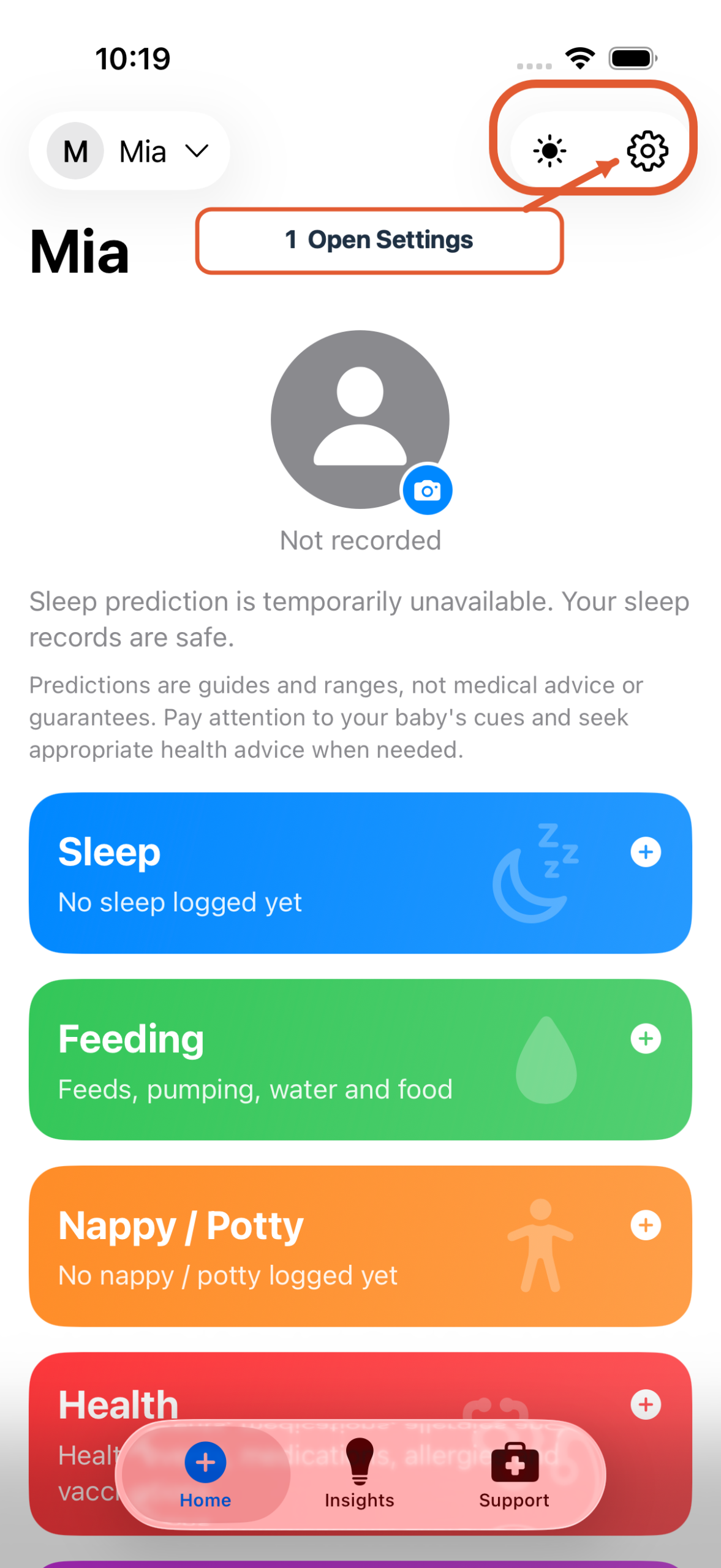
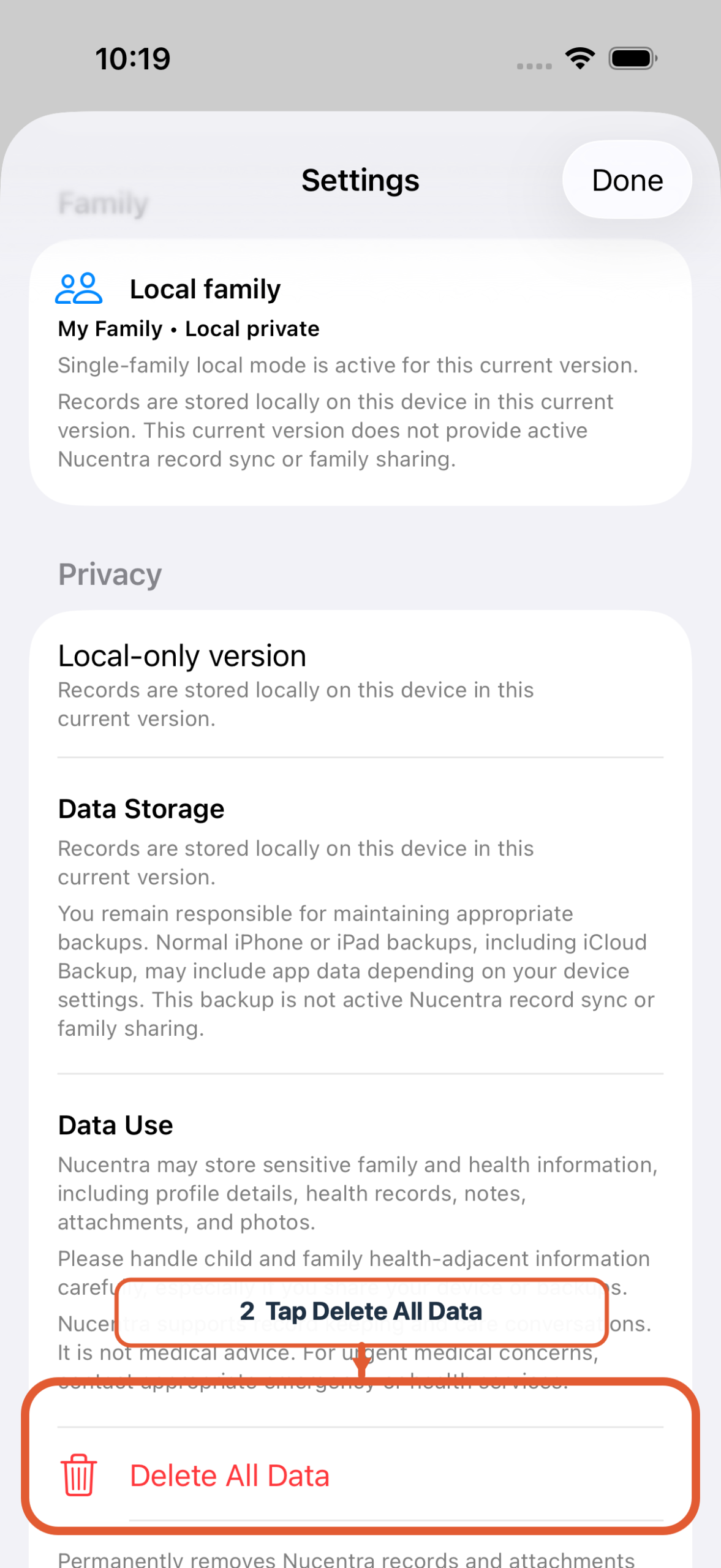
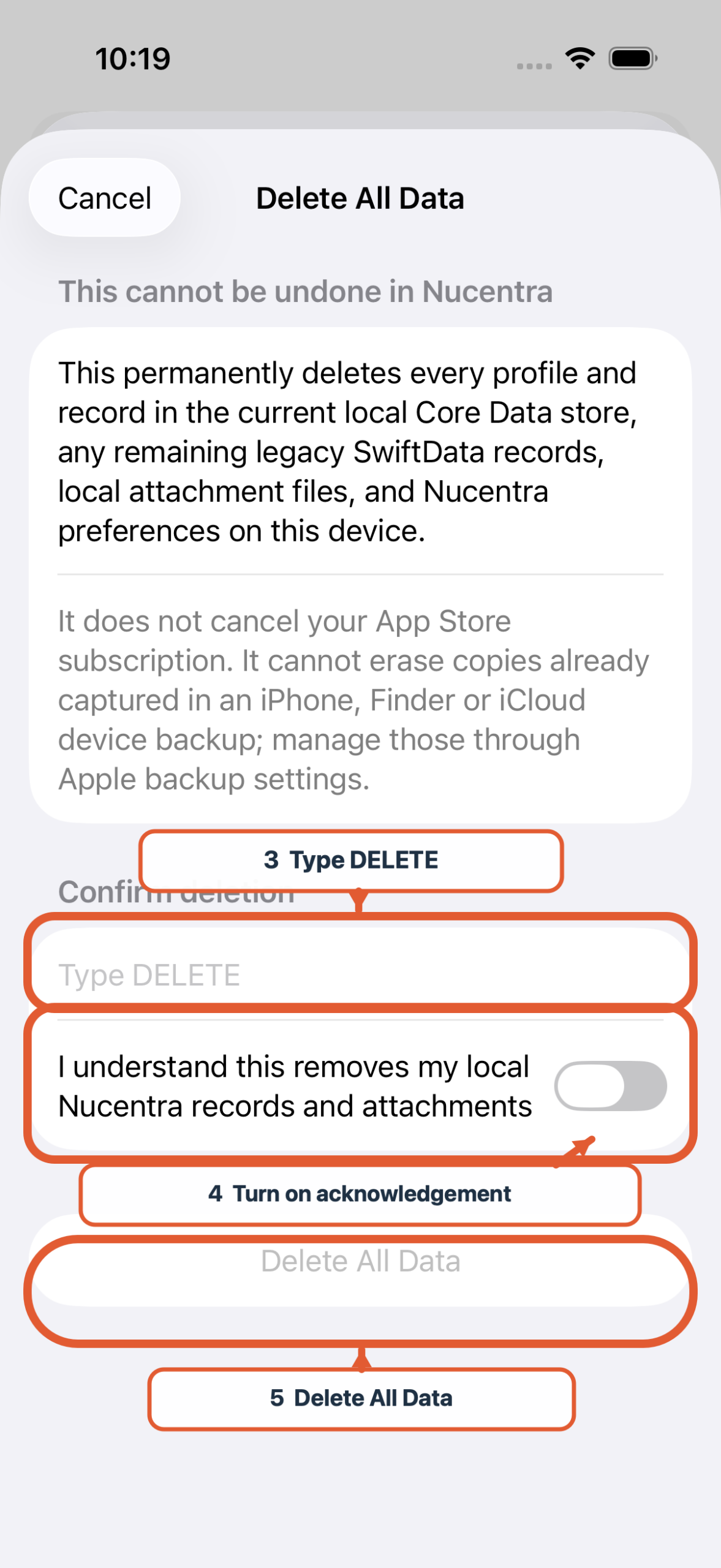
Delete All Data removes profiles, records, local attachment files, older local records retained by earlier app versions and Nucentra preferences stored by the app on that device. It does not cancel an App Store subscription. It also cannot erase copies already held in an iPhone, iPad, computer or iCloud device backup, or files you exported outside Nucentra.
If Nucentra reports that deletion was incomplete, do not assume everything was removed. Close and reopen the app, try again, and contact support if the problem continues—especially before giving the device to someone else.
Backups and exported files outside Nucentra
Normal Apple device backups, including iCloud Backup depending on your settings, may include Nucentra app data. This is different from Nucentra providing active record sync, family sharing or cloud recovery.
Deleting data in Nucentra or deleting the app may not remove copies held in an existing Apple device backup. Manage those copies through your Apple backup settings. Apple explains what iCloud backs up and how to manage iCloud storage and backups.
Files exported from Nucentra are controlled by you and the apps or services where you save them. Deleting Nucentra data does not delete those outside copies.
There is no Nucentra account to delete
The current version does not provide a Nucentra or Nuco Tech user account, Nuco Tech backend cloud storage for app records, or active Nucentra record sync. There is therefore no Nucentra cloud account containing your local app records for Support to close or erase.
You can use the Contact page to ask about information you previously sent through the website or Support. Nuco Tech may retain limited support or business records as explained in the Nucentra Privacy Policy.
Contact support safely
Please do not send child names, dates of birth, medical records, appointment notes, medication details, photos, documents, screenshots, exported files, passwords or other sensitive family information through Support.
Useful non-sensitive details include your Nucentra app version or TestFlight build number, iOS or iPadOS version, device model, the action you tried and the exact error text.
Support can explain app steps and investigate technical issues, but it generally cannot see or restore records stored only on your device. Standard support aims to respond within 10 business days. Privacy, possible data and app-access issues are prioritised, with an aim to respond within 5 business days where practical. Support is not live and is not monitored for emergencies.
Nucentra and Nuco Tech Support do not provide medical advice, diagnosis, treatment guidance, medication advice or emergency help. For health concerns, contact a qualified health professional. For urgent concerns, contact local emergency services.
Related information
Plain English
Your Nucentra records are stored on your device. Plus can create a PDF or CSV report for one profile at a time, but that report is not a complete backup and does not contain attachment files. The separate complete portability archive is not available in this current version, so do not delete your data if you still need a complete copy.
Delete All Data removes Nucentra records and local attachments from the device, but it does not cancel your App Store subscription or remove Apple backups and files you saved elsewhere. Support cannot remotely browse, recover or delete local Nucentra records.
Last updated: 17 July 2026